Cara Mengakses Dashboard MailChannels dari cPanel
What is the MailChannels Dashboard?
The MailChannels Dashboard provides tools and insights for managing your incoming email activity. With the dashboard, you can:- Reduce the amount of spam in your inbox
- Block harmful messages that may contain phishing or malware
- Ensure only legitimate emails reach your inbox
Steps to Access MailChannels Inbound Filtering from cPanel
1. Log into cPanel
- Access your cPanel by going to
yourdomain.com/cpanelor by logging in through your Account Management Panel (AMP) and selecting cPanel.
2. Locate MailChannels
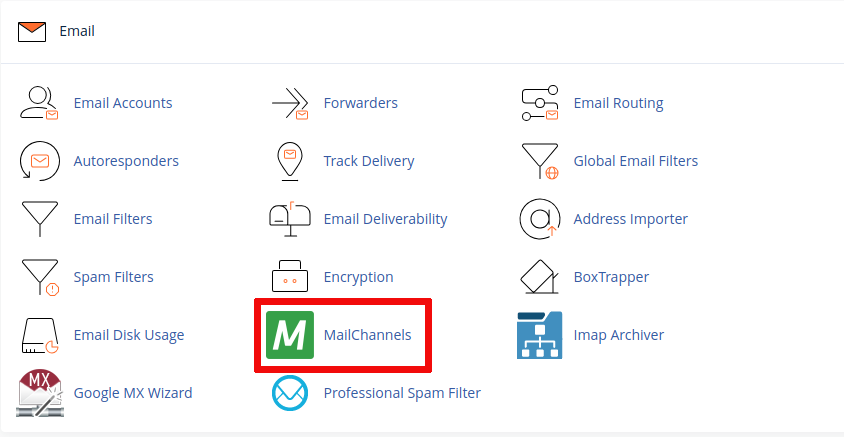
- Once logged in, scroll down to the Email section of your cPanel dashboard.
- Click on the MailChannels icon.
3. Log into MailChannels Dashboard
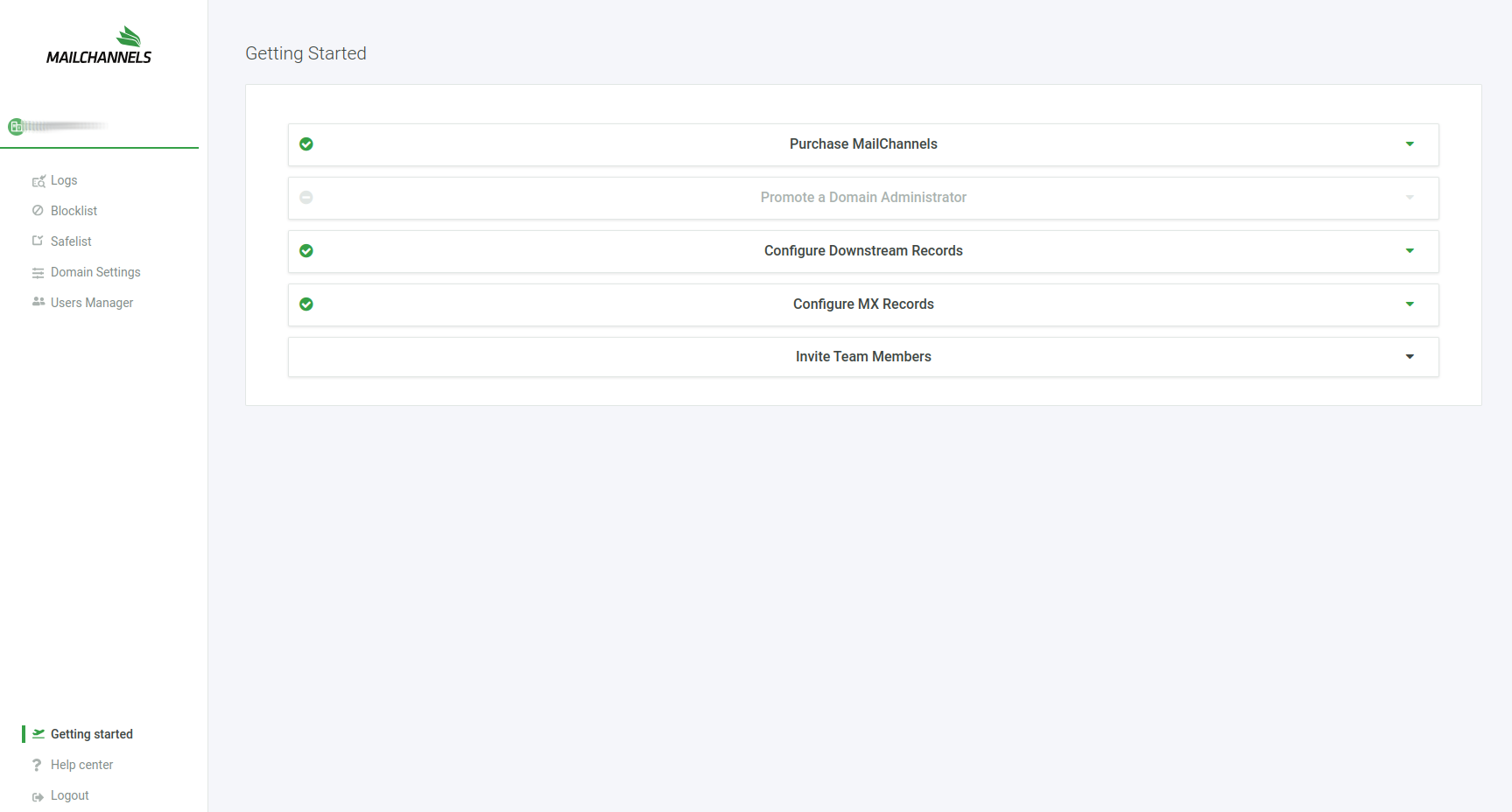
- Click on the Login button next to the desired domain.

- You’ll be redirected to a page where you can manage your inbound filtering settings. Here, you can view mail logs, block senders, whitelist trusted senders, adjust spam filter actions, and review quarantined emails if they are available.
Troubleshooting Tips
Can’t find the MailChannels icon?
If you don’t see the MailChannels option in cPanel, your hosting plan may not include inbound filtering. Contact InMotion Hosting Support to confirm the details of your plan.
Having trouble with spam settings?
If you’re still receiving spam emails, double-check your filter settings. If issues persist, contact our support team for assistance.

Comments
Post a Comment